
Accessing a Z: Drive (Windows 8.1)
|
1. Accessing your Z Drive from off campus requires a VPN connection. Please visit Set up a VPN Connection if you are unsure of how to do that. |
|
|
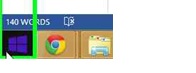
2. The process is fairly similar to Mapping a Network Drive. First, you’ll need to left click on the Start icon to open the Start menu. |
|
|
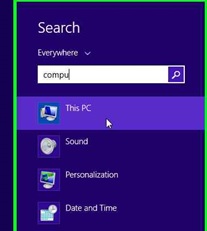
3. Search for either “Computer or “My PC” |
|
|
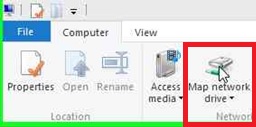
4. Select “Map Network Drive” |
|
|
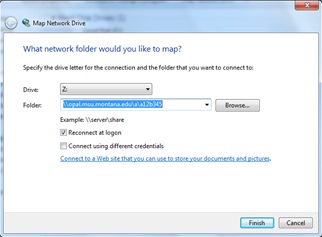
5. Make sure the Z: letter is chosen and enter: \\opal.msu.montana.edu\x\NetID Into the “Folder:” line. Where “x” is the first letter of your NetID and NetID is your entire NetID (ex: a12b345) · There is an option to reconnect upon logon to your Z Drive- toggle on or off to your liking. |
|
|
|
|
|
6. Select “Finish” or hit Enter to complete the process. The contents of your Z Drive should appear. |
|